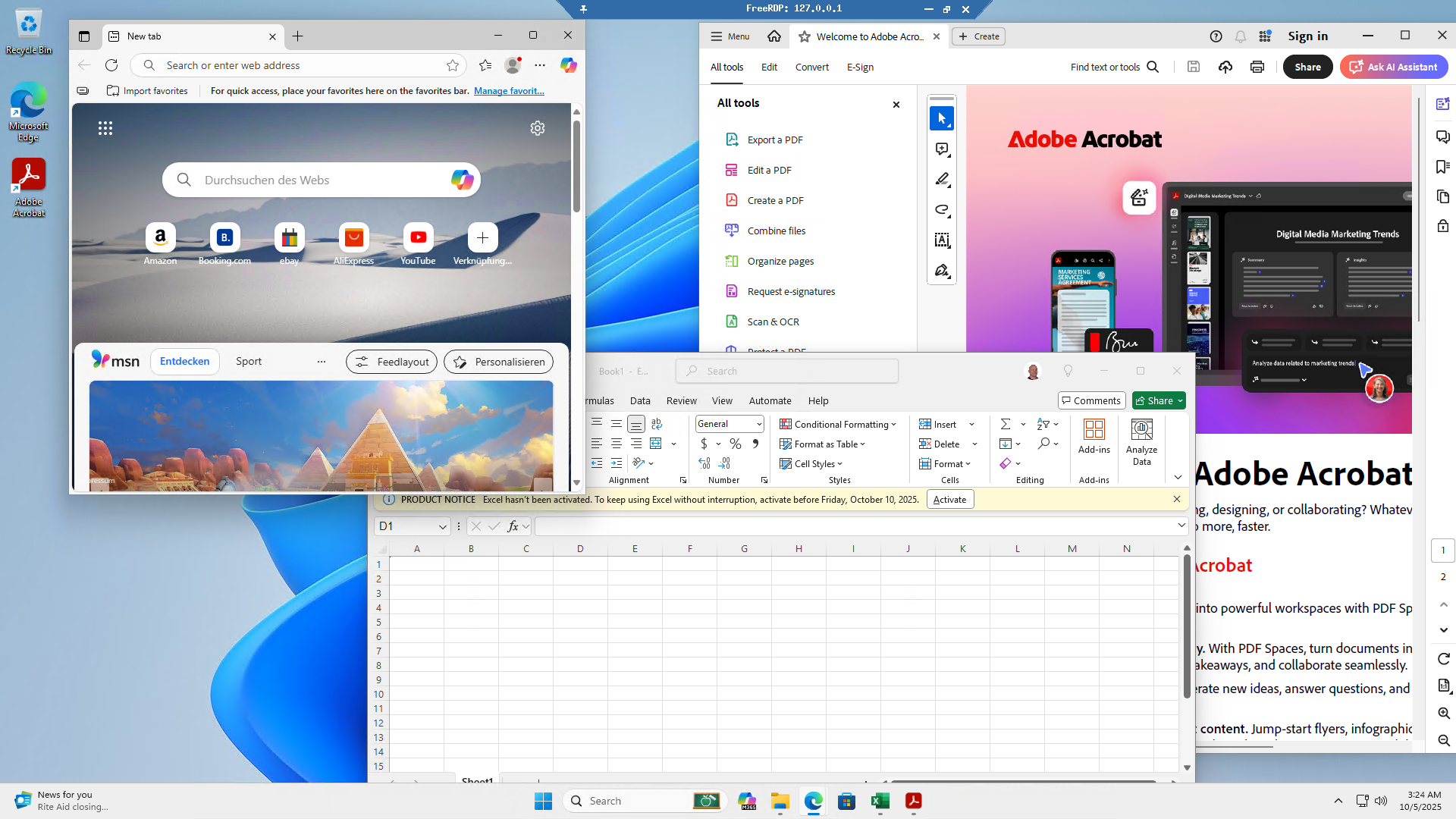
Microsoft Office, Adobe Acrobat and Photoshop on Linux?
How it works with AnduinOS and WinBoat
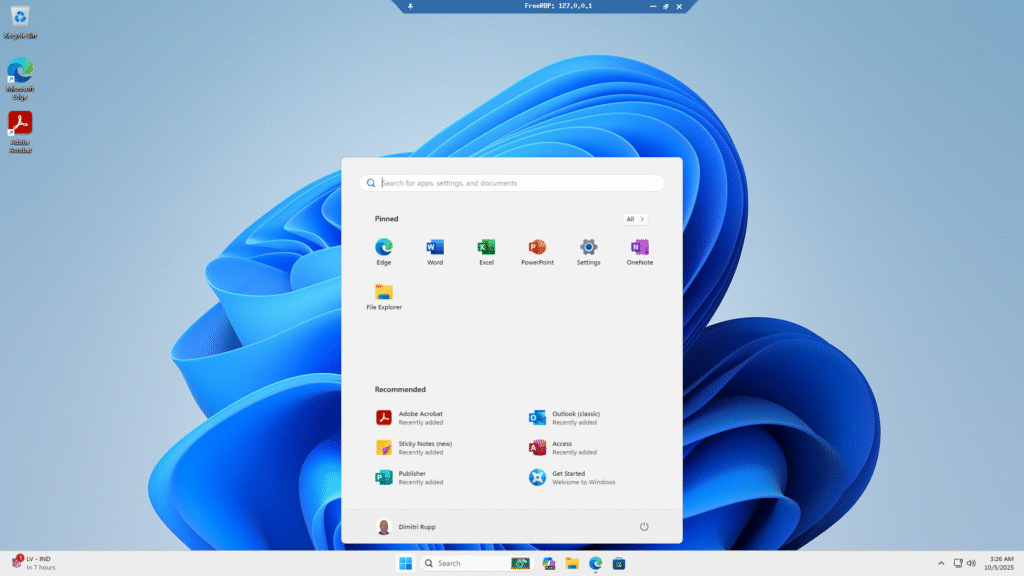
No more compromises: the best of both worlds on your Lumi notebook
The most common objection when switching to Linux: „But I need the real Microsoft Office!“ or „My Adobe software only runs on Windows!“
This concern is justified – and at the same time long outdated. At Lumi-Systems.io we show you how you can use, on your AnduinOS notebook, native Windows applications without giving up the benefits of Linux.
What is WinBoat?
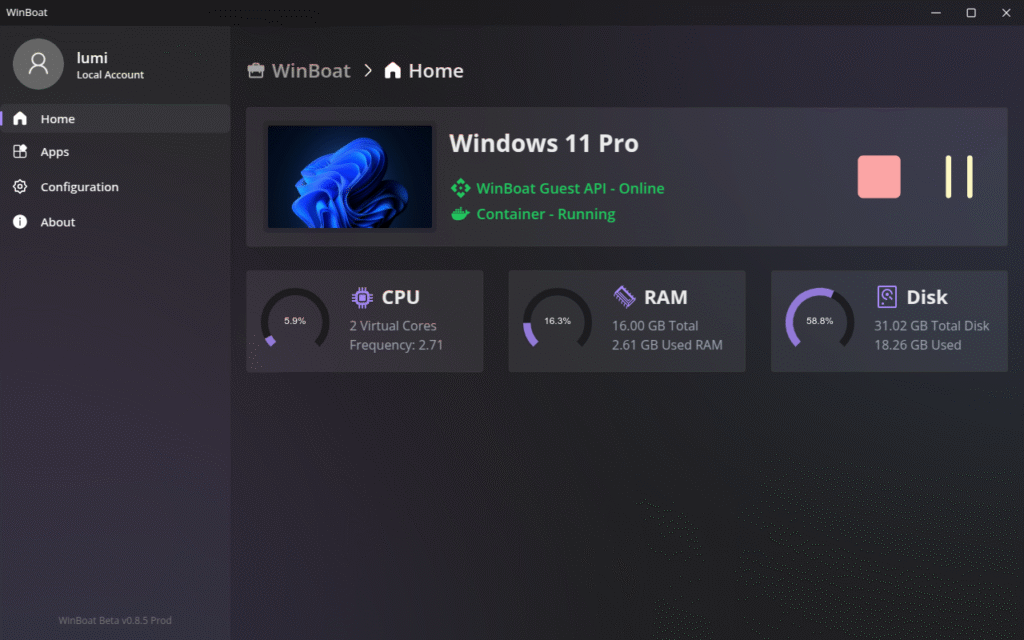
WinBoat is an innovative open-source solution that Windows 11 as a container runs on Linux. real Windows system – with all the advantages:
✅ 100% compatibility – If it runs on Windows, it runs in WinBoat
✅ Native performance – Thanks to KVM virtualization
✅ Seamless integration – Windows apps appear like Linux programs via Microsoft RDP
✅ Full file system integration – Your Linux home directory is available in Windows
The connection from the Linux host to the Windows 11 container is via Microsoft RDP (Remote Desktop Protocol), for which on the Linux side FreeRDP must be installed. The result: Windows 11 and all installed programs run very smoothly and convey the authentic feeling of working on a real Windows 11 workstation.
Who is this interesting for?
📊 Business users
- You need Microsoft Office (Word, Excel, PowerPoint) with full macro support
- Adobe Acrobat Reader for PDF workflows
- Specialized accounting software only runs on Windows
- Your industry works with Windows-specific tools
🎨 Creative professionals
- Adobe Creative Suite (Photoshop, Premiere Pro, Illustrator)
- CAD software such as AutoCAD
- Music production with Windows-exclusive DAWs
💼 Switchers
- You want to try Linux, but not give up all your habits right away
- Gradual transition from Windows to Linux
- Safety net for critical applications
Hands-on test: Microsoft Office on AnduinOS
We tested WinBoat on a Lumi-Latitude 5580 with AnduinOS. Here is our experience:
Hardware requirements
Recommended configuration for optimal performance:
- CPU: At least 8 cores or more
- RAM: At least 32GB
- Storage: At least 64GB free disk space for the Windows 11 Docker container
- Virtualization: Intel VT-x or AMD-V (enabled on all modern Lumi notebooks)
Minimum configuration (works, but limited smoothness):
- CPU: 4 cores
- RAM: 16GB
- Storage: 32GB free storage
⚠️ Important: With fewer resources than recommended, WinBoat works technically, but the user experience is not as smooth and therefore not quite as pleasant. For productive work, we strongly recommend the specifications mentioned above.
Lumi advantage: We will be happy to advise you on which notebook is right for your needs.
Installation: Step by Step (specific to AnduinOS)
Step 1: Install prerequisites
bash
# Install Docker
sudo apt update
sudo apt install docker.io docker-compose -y
sudo systemctl enable --now docker
sudo usermod -aG docker $USER

# Install FreeRDP (for RDP connection)
sudo apt install freerdp3-x11 -y

# Verify KVM support
ls -la /dev/kvm
Step 2: Resolve port conflict
Common issue on AnduinOS: The GNOME Remote Desktop service uses port 3389 (RDP) by default.
Solution:
bash
# Disable GNOME Remote Desktop
sudo systemctl stop gnome-remote-desktop.service
sudo systemctl disable gnome-remote-desktop.service

# Verify
sudo netstat -tulpn | grep :3389
# Should be empty!
💡 Lumi tip: If you order the notebook from us with WinBoat preinstalled, we have already applied this configuration for you.
Step 3: Install WinBoat
bash
# Download the latest version
cd ~/Downloads
wget https://github.com/TibixDev/winboat/releases/download/v0.8.5/winboat-0.8.5-x86_64.AppImage

# Make executable
chmod +x winboat-0.8.5-x86_64.AppImage

# Start
./winboat-0.8.5-x86_64.AppImage
Step 4: Run installation
The elegant WinBoat interface guides you through the setup:
- Resource allocation:
- RAM: 16-24GB (with 32GB total RAM)
- CPU cores: 4-8
- Hard drive: 64GB (recommended for Windows + apps)
- Windows is downloaded automatically (~6GB)
- Installation runs fully automatically (30-60 minutes)
- Track progress in the browser:
http://localhost:8006
Show image
After installation: use Windows apps
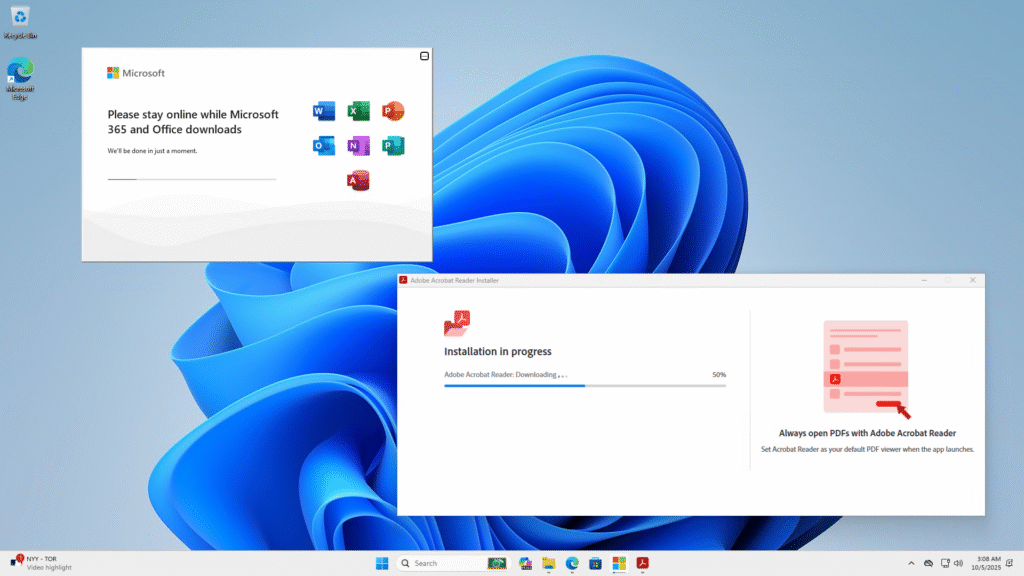
Install Windows apps – just as usual!
Once Windows 11 is running, you can install all programs as usual:
✅ Adobe Acrobat Reader – PDF workflows as on real Windows
✅ Adobe Photoshop – Full Creative Suite support
✅ Microsoft Office – Word, Excel, PowerPoint with all features
✅ Other Windows software – Install whatever you need!
The installation is performed exactly as on a normal Windows 11 computer – no difference, no compromises.
Option A: Windows Desktop
Full Windows 11 desktop via RDP:
bash
# Connect with FreeRDP
xfreerdp3 /v:localhost:3389 /u:YourUsername /p:YourPassword /f
Option B: Seamless Integration (recommended!)
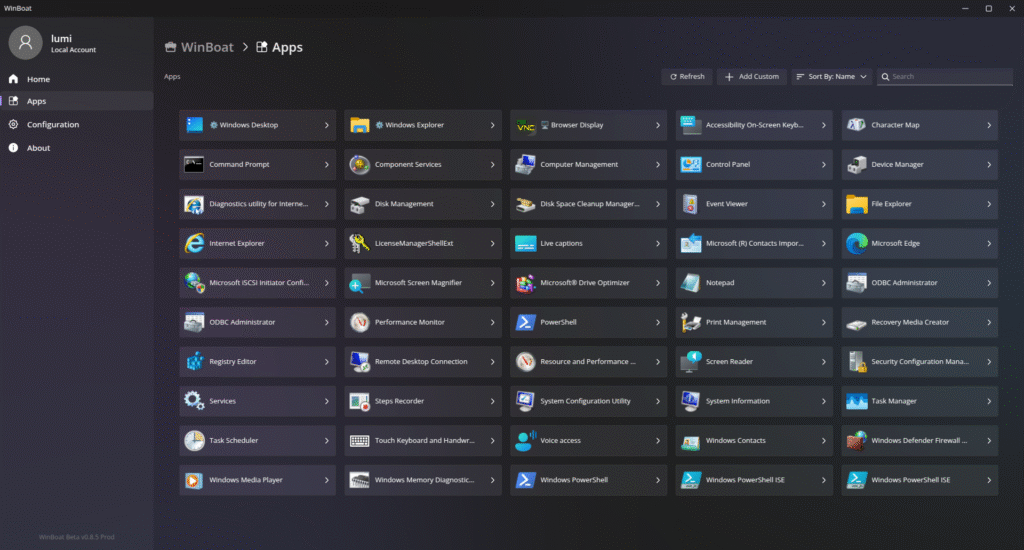
Individual Windows apps appear as native Linux windows – without a visible desktop!
How it works:
- WinBoat automatically detects installed Windows apps
- Apps appear in the WinBoat interface
- One click launches the app seamlessly integrated
Performance results & user experience
Our measurements on the Lumi-Latitude 5580 (Intel i7 8-core, 32GB RAM):
The user experience:
Overall, Windows 11 and all installed programs run very well. Thanks to KVM virtualization and RDP integration, you really get the feeling of working on a real Windows 11 workstation. Performance with the recommended hardware configuration is absolutely suitable for everyday use for office work, PDF editing and creative applications.
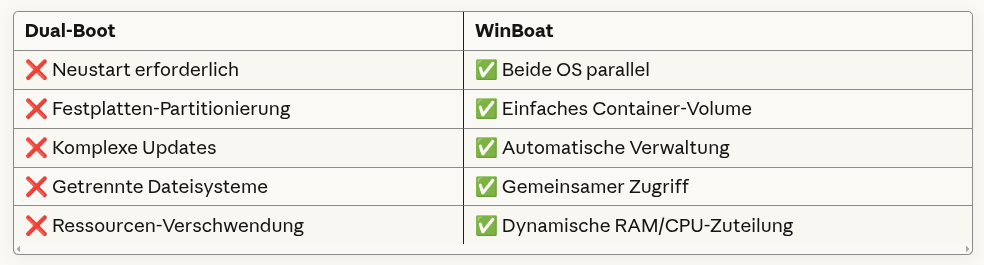
Advantages over dual-boot
Limitations & alternatives
Honesty is important to us. WinBoat is not ideal for every use case:
Not optimally suited for:
- ❌ Gaming with high GPU load (no GPU acceleration)
- ❌ CAD with intensive 3D acceleration
- ❌ 4K+ video editing in real time
- ❌ Systems with less than 32GB RAM (works, but not smoothly)
Alternatives we recommend:
For office work:
- LibreOffice – Free, compatible, preinstalled
- OnlyOffice – Closer to Microsoft Office
- Microsoft 365 Web – Browser-based
- WinBoat – If you need the original
For Adobe apps:
- GIMP (Photoshop alternative)
- Inkscape (Illustrator alternative)
- DaVinci Resolve (Premiere alternative, Linux-native!)
- WinBoat – If Adobe is essential
Lumi-Systems.io service: preinstallation on request
🎁 Our offer
When you buy a Lumi notebook, you can WinBoat preinstalled order:
✅ Fully configured – Docker + FreeRDP installed, port conflicts resolved
✅ Windows 11 activated (License separate)
✅ Performance-optimized for your notebook model
✅ 64GB container preconfigured – Ready for Office & Adobe
✅ Documentation & Support – We'll show you how it works.
Price surcharge: From 49€ (one-time, incl. setup & optimization)
Windows license not included – use your existing one or purchase one separately
Frequently asked questions (FAQ)
Do I need a Windows license?
Yes. WinBoat installs Windows, but requires a valid Microsoft license for permanent use. You can use your existing license or purchase a new one.
Can I take my Windows files with me?
Absolutely! Your Linux home directory (/home/username) is mounted in Windows as a network drive. Seamless file exchange between both systems.
Is WinBoat safe?
WinBoat uses Container isolation. Windows runs separately from the host system, which provides additional security. Windows updates are done as usual via Windows Update.
Does this also work on older notebooks?
Technically yes, but for productive work we recommend:
- At least 8 CPU cores
- At least 32GB RAM
- At least 64GB free storage
Lumi recommendation: For optimal performance, use our business models with 32GB+ RAM.
Which programs can I install?
All Windows programs! Adobe Acrobat Reader, Photoshop, Microsoft Office – installation is done just like on a normal Windows 11 computer. No differences, no restrictions.
Conclusion: Linux without compromises
AnduinOS + WinBoat = The best of both worlds
With WinBoat on your Lumi notebook, you no longer have to decide:
🐧 Linux advantages:
- No viruses, no bloatware
- Free software variety
- Privacy & control
- Performance & stability
🪟 Windows compatibility:
- Original Microsoft Office
- Adobe Creative Suite (Acrobat, Photoshop, etc.)
- Industry-specific software
- Familiar workflows – feels like real Windows 11
For switchers, this means: No risk, no burned bridges. You can try out Linux, while your critical Windows apps remain available.
About the Author
Dimitri Rupp is the founder of Lumi-Systems.io and an AI & Cloud Solutions Expert. As a Linux enthusiast and former Windows power user, he knows both worlds – and shows how to unite them.
Ready for Linux – without giving up your Windows apps?